Help Article

Note: Amazon LTL is limited to 26 pallets. If you have more than 26 pallets going to a single fulfillment center, you may need to consider shipping to Amazon using Flexport FCL

1. Select LTL for “Shipping Service” and Amazon-Partnered Carrier for “Shipping Carrier.”
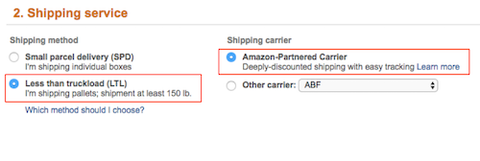
Amazon Seller Central shipping service step with Less than truckload (LTL) and Amazon-Partnered Carrier selected for pallet shipments

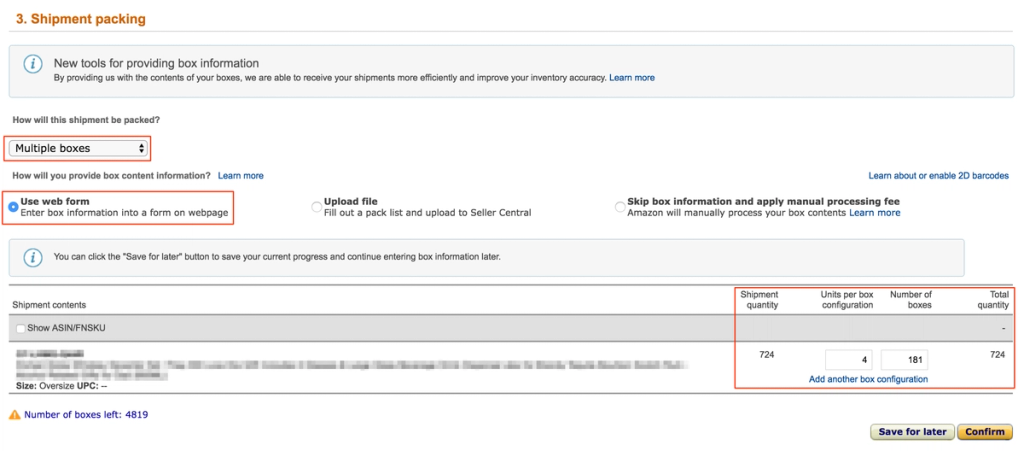
2. Complete Section 3. Shipment Packing

  • Select “Multiple Boxes” from the dropdown menu.
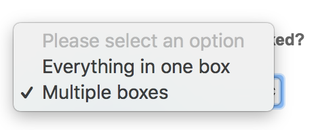
Amazon Seller Central packing dropdown with options Everything in one box and Multiple boxes, the latter checked

Select “Use web form" and complete the form. Click Confirm.

Amazon Seller Central Shipment packing step with Multiple boxes selected, Use web form chosen, and box configuration quantity fields highlighted

3. Download the box labels and send them to your supplier so they can label them at origin. Sending labels to your supplier will help ensure an efficient shipment.
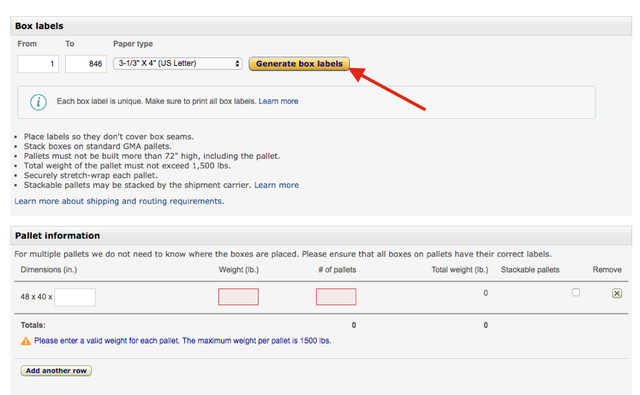
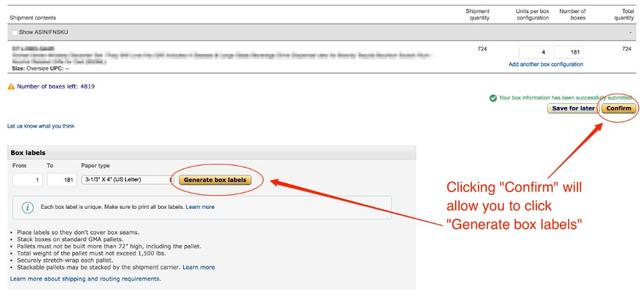
Amazon Seller Central box labels panel with an arrow pointing to the Generate box labels button, above an empty Pallet information row.
Amazon Seller Central box labels step with arrows showing to click Confirm then Generate box labels after submitting box information

4. STOP HERE. We will input the pallet data for you. 
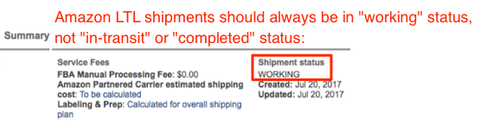
Amazon LTL shipment Summary panel noting status should stay WORKING, with the WORKING shipment status field outlined in red.

Back to: Selecting Your Final Delivery Method (US/Canada) 

Next: Sending a Quote Request to Flexport (US/Canada and EU)